How to see battery health in ASUS laptop?
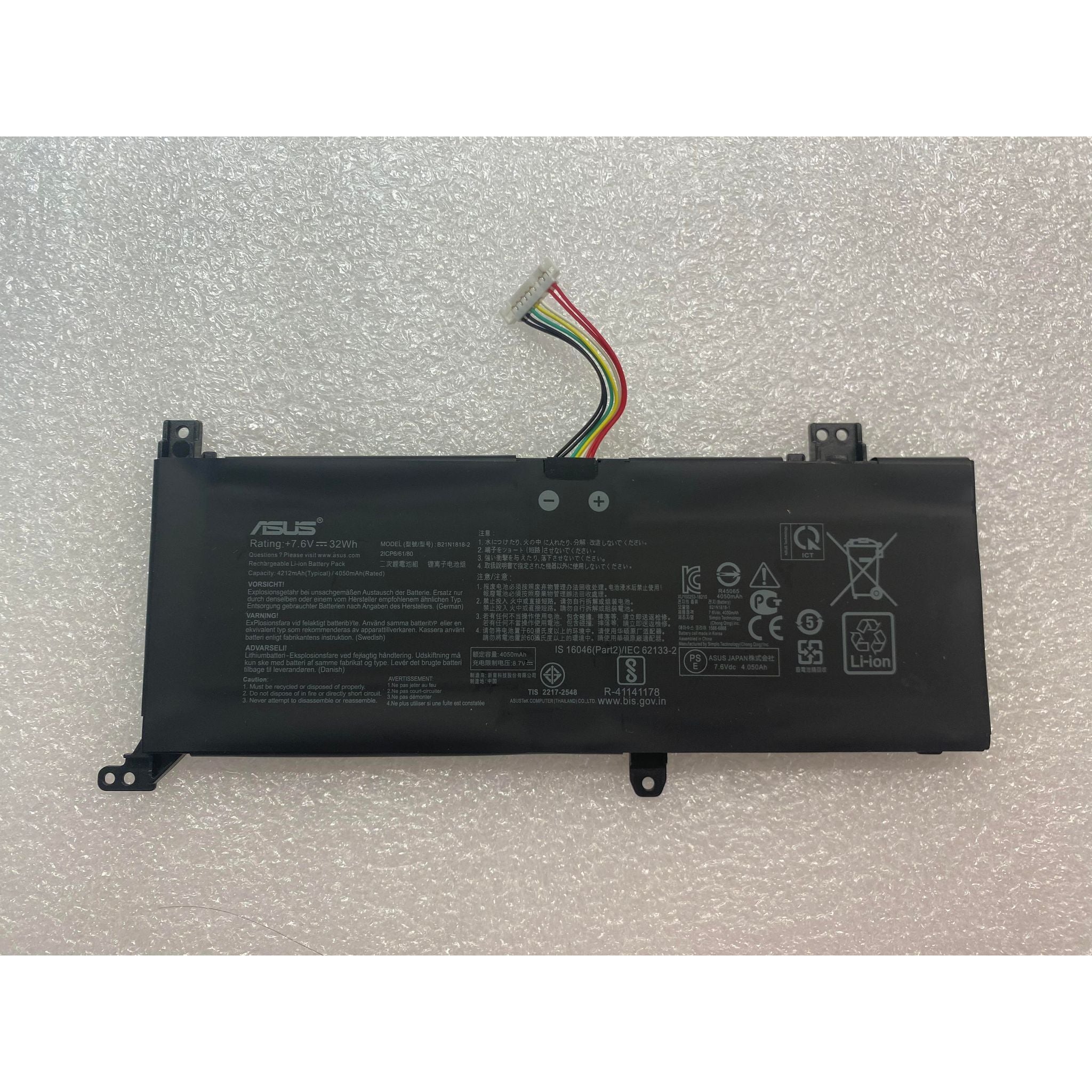
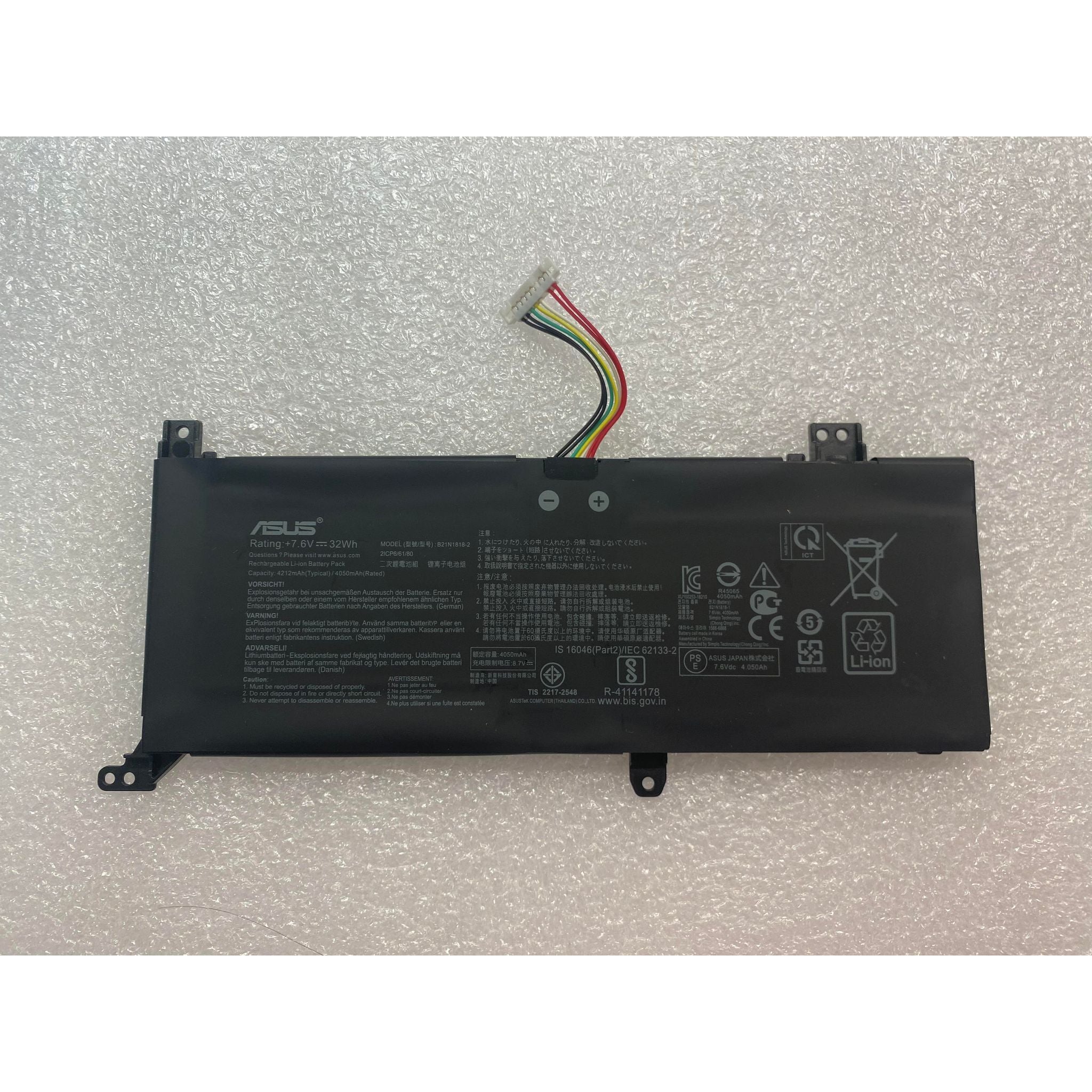
New Genuine Asus X515DA X515EA X515FA Battery 32WH
Status:
Open Oct 17, 2025 - 05:04 AM
1answer
Answer
Oct 17, 2025 - 05:03 AM
To check the battery health on an ASUS laptop, you can use the built-in MyASUS app by navigating to the "Customer Support" section and selecting "Battery Health Charging." Alternatively, you can generate a battery report by opening Command Prompt and typing `powercfg /batteryreport`, then reviewing the generated report for detailed battery health information.
View More Product Details
New Genuine Asus X515DA X515EA X515FA Battery 32WH
***PLEASE SEE TAB PLACEMENT. COMPARE WITH YOUR ORIGINAL BATTERY. THIS IS TYPE 1 Description: New Genuine Asus Battery Features and Technical Specifications: Number of Cells: 2 Capacity: 32Wh Voltage: 7.6V Colour: Black Compatible Part #s: 0B200-03280500, B21N1818-1, C21N1818
Buy Now
View all New Genuine Asus X515DA X515EA X515FA Battery 32WH Questions & Answers